Requests

Requests are the most important entities in ARIS, whose main purpose is to manage them. They are always associated to a given patient, who must have been created before hand.
Request Lifespan[edit]
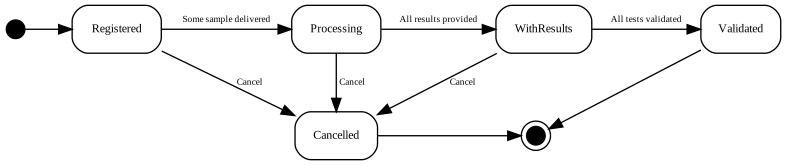
During their lifespan, requests go through some different states that determine the functionalities offered for them in the system. These states are depicted in the diagram, and their labels are configurable at State of the request.
On creation, the state of the request is Registered, and allows to provide the basic information, as well as associate different tests to it. After indicating that some of the samples has been delivered, the state changes to Processing and the data of the request cannot be modified anymore. Other samples can be delivered later, but at this point, results can be provided for the tests whose sample was already delivered. Once all non-cancelled tests have a result, the state of the request changes to WithResults. At this state, results can still be modified, but they are expected to be eventually validated. A request with all its non-cancelled tests being validated is considered Validated.
At any time, a request, its samples or its tests can be cancelled. A sample with all its tests cancelled is considered cancelled, and a request with all samples cancelled is considered cancelled, too.
Create[edit]
This form is divided into steps. The step the user is on is indicated by the number of the step turning orange.
Once the step is filled with the required information, the circle marking the step will stay orange and the number in said circle will change into a check mark (✓)  .
.

- Select a patient → The first step involves searching and selecting a patient. The search grid can be narrowed down with the search field. Once a patient is selected, the main and important information about this patient will be displayed at the bottom of the form in a table. Until the patient has been selected, the user cannot continue to the next step. To continue to the next step, the user must press the next button found at the bottom right of the form.
- Basic information → To complete this step, only the requesting center is required, but other optional fields are provided like requesting unit and physician, or the room and bed of the patient. Additional information like a diagnostic orientation or the pregnancy status can also be indicated. At the bottom right of the page, on top of the Next button, there is a checkbox labelled Urgent, check this box if this request must be prioritized.

- Analytical tests → In this step, the user must choose which tests, groups or profiles are requested for the patient. More than one element from each list may be chosen, but at least one test must be requested one way or another. Tests selected as part of a group or profile (highlighted in purple) cannot be deselected individually.
- Biological samples → This step informs the user of the type of sample that must be taken, depending on the tests chosen in the previous step. There are no required fields in this step, but if the user wants to add a comment, there is a comment box for each sample.



At any moment, the next button cannot be used if any of the required fields is not filled in. In every step, there is a Previous button for the user to be able to navigate back and forth between steps and alter the information they contain.
Change information[edit]
This form is for editing requests whose samples were not yet delivered. Instead of an edit button, clicking on any part of the row will bring the user to a form similar to the create one, with all of its tabs and similar format and behavior.
Deliver samples[edit]
Similarly to the previous form, this also displays a list of either Registered or Processing requests, for the user to choose one of them. Once a request is chosen, three tabs are shown with the patient's data, the request data, and its list of biological samples. The first two are read-only. Just the latter allows some interaction.
Each of the samples shown contains a field to provide comments, and it can be either checked as delivered or cancelled by click the corresponding red button. On the delivering of a sample, its origin or incident can be optionally provided. On cancelling, a pop-up dialog allows to provide some justification for this.
It is important to notice that the tests associated to the request cannot be changed once the first sample as been delivered.
Introduce results[edit]
As in the previous cases, a list of requests is shown. In this case, this list contains all requests in Processing state.
Once a request is chosen, four tabs are shown with the patient's data, the request data, its list of biological samples, and its list of analytical tests. The first tree are read-only. Just the latter allows some interaction. Besides the same search box present in all the tables in the system, there is also the possibility of filtering the tests by group of tests (if any was chosen for this request). A red button in the top right corner allows to cancel the request.
The table of tests contains the following columns
- Name → Shows the name and the code of the kind of test. It is colored red if either the test or its sample was cancelled.
- Result → Allows to introduce the result of the test.
- Generic test note → Shows the informative note associated to the kind of test, if any.
- Result within range → Indicates whether the result of the test is in the expected range of values for the kind of test (green check) or not (red cross).
- Referred → Indicates whether the test is done or expected to be done in another laboratory (green check) or not (red cross).
- Automatic → Indicates whether the test is done or expected to be done automatically (green check) or not (red cross). Automatic tests are done by means of the Robotized microscope and the Mobile App. Their results should not be typed manually, but uploaded through Bluetooth. However, the field is editable here anyway to allow overwriting the automatic results.
- The test has some note → Indicates whether the test has some associated note (green check) or not (red cross). Tests whose results were generated automatically will always have an associated note.
- Test details → This should show an icon to navigate to further details of the test. However, if the test or its corresponding sample was cancelled, the corresponding message in red will be shown.
On accessing the details of the test, we gain access to visualize many other things (i.e., units of the result, inferior reference measure, superior reference measure, the use who introduced the results, as well as details provided for the corresponding sample on delivering it). Moreover, this also allows to change if the test is automatic or deferred, indicate some incidence on the sample, of provide some note. It is important to notice that any of the information provided in this form will not be persisted until back in the list and saved from there.
If the result of the test was provided automatically, the corresponding image and its associated note will be shown at the bottom of the details of the test.
Validate results[edit]
This functionality uses exactly the same interface as introducing results, but the table shows one more column Validated with a checkbox for each test. These can be checked one by one, or all at once by choosing a concrete group of tests in the dropbox at the top. On doing it, a button to validate all the tests of the group will appear.
Search historic[edit]
At the bottom left of this tab, there is a download button. Depending on the status of the checkboxes in the downloaded fields tab, different downloading options may be presented to the user.