MobileApp:User Guide: Difference between revisions
No edit summary |
No edit summary |
||
| Line 1: | Line 1: | ||
[[Category:MobileApp:User Guide]] | [[Category:MobileApp:User Guide]] | ||
__TOC__ | |||
===User Manual=== | ===User Manual=== | ||
*Manual under construction, used for internal testing only. | *Manual under construction, used for internal testing only. | ||
On the first use of the application, it will require permissions for location, camera, Bluetooth, and internal storage. For the correct use of the APP, it is necessary to accept all of them. It is worth remembering that the application does not save sensitive data. See the [[MobileApp:Privacy Policy|Privacy Policy]]. | On the first use of the application, it will require permissions for location, camera, Bluetooth, and internal storage. For the correct use of the APP, it is necessary to accept all of them. It is worth remembering that the application does not save sensitive data. See the [[MobileApp:Privacy Policy|Privacy Policy]]. | ||
On the application's main screen, we have 3 buttons: SYNC ARIS, SAVED WORKLIST, and NEW WORKLIST. As the Figure below shows. | On the application's main screen, we have 3 buttons: '''SYNC ARIS''', '''SAVED WORKLIST'', and '''NEW WORKLIST'''. As the Figure below shows. | ||
[[File:App_main.jpg|200px|center|Main screen app]] | [[File:App_main.jpg|200px|center|Main screen app]] | ||
First, you need to download the worklist that is available in | First, you need to download the worklist that is available in ARIS. To do this, click on the '''NEW WORKLIST''' button. | ||
From there we will have a screen to choose the | From there we will have a screen to choose the bluetooth devices. The '''SAVED WORKLIST''' button is an option without a direct connection to the computer running ARIS, however, it is only accessible when you have previously downloaded the worklist. | ||
In order for the connection between the computer with | In order for the connection between the computer with ARIS and the mobile device to exist, they must be close to each other and both must have the bluetooth connection turned on and previously [https://support.microsoft.com/en-us/windows/pair-a-bluetooth-device-in-windows-2be7b51f-6ae9-b757-a3b9-95ee40c3e242 paired]. | ||
For this, we must click on the device where ARIS is being executed and enabled. | |||
The next step is to select the device where the ARIS system is, by clicking on it, In the case of the example picture above we should click "fedora-allisson-dantas". This name will change according to your computer's settings, to change this name you must go into the Bluetooth settings of the computer where the ARIS system is running. | The next step is to select the device where the ARIS system is, by clicking on it, In the case of the example picture above we should click "fedora-allisson-dantas". This name will change according to your computer's settings, to change this name you must go into the Bluetooth settings of the computer where the ARIS system is running. | ||
[[File:App bluetooth.jpg|200px|center|Bluetooth screen app]] | [[File:App bluetooth.jpg|200px|center|Bluetooth screen app]] | ||
In the next screen will be the choice of the petition you want to perform. When you click on the petition, the app will ask for a verification code. This is the last letter present in the sample that you registered in the ARIS system. | In the next screen will be the choice of the petition you want to perform. When you click on the petition, the app will ask for a verification code. This is the last letter present in the sample that you registered in the ARIS system. | ||
Revision as of 16:35, 16 May 2023
User Manual[edit]
*Manual under construction, used for internal testing only.
On the first use of the application, it will require permissions for location, camera, Bluetooth, and internal storage. For the correct use of the APP, it is necessary to accept all of them. It is worth remembering that the application does not save sensitive data. See the Privacy Policy.
On the application's main screen, we have 3 buttons: SYNC ARIS', SAVED WORKLIST, and NEW WORKLIST. As the Figure below shows.

First, you need to download the worklist that is available in ARIS. To do this, click on the NEW WORKLIST button. From there we will have a screen to choose the bluetooth devices. The SAVED WORKLIST button is an option without a direct connection to the computer running ARIS, however, it is only accessible when you have previously downloaded the worklist.
In order for the connection between the computer with ARIS and the mobile device to exist, they must be close to each other and both must have the bluetooth connection turned on and previously paired. For this, we must click on the device where ARIS is being executed and enabled.
The next step is to select the device where the ARIS system is, by clicking on it, In the case of the example picture above we should click "fedora-allisson-dantas". This name will change according to your computer's settings, to change this name you must go into the Bluetooth settings of the computer where the ARIS system is running.

In the next screen will be the choice of the petition you want to perform. When you click on the petition, the app will ask for a verification code. This is the last letter present in the sample that you registered in the ARIS system.
For this internal test version, it is only possible to do tests with the manual mode of the app, i.e. without the connection and communication with the low-cost robotic device. To do this, simply click on the MANUAL MODE button and go to the image capture screen. In the image capture screen, you must click on the center button to capture each image. When you are satisfied, click on the save button. After this step, the app returns to the start screen.

The synchronization with the ARIS system is done through the main screen and the SYNC ARIS button. After clicking it you will be directed again to the Bluetooth device choice, after clicking it the app will send all the worklists available in the app to the ARIS system.

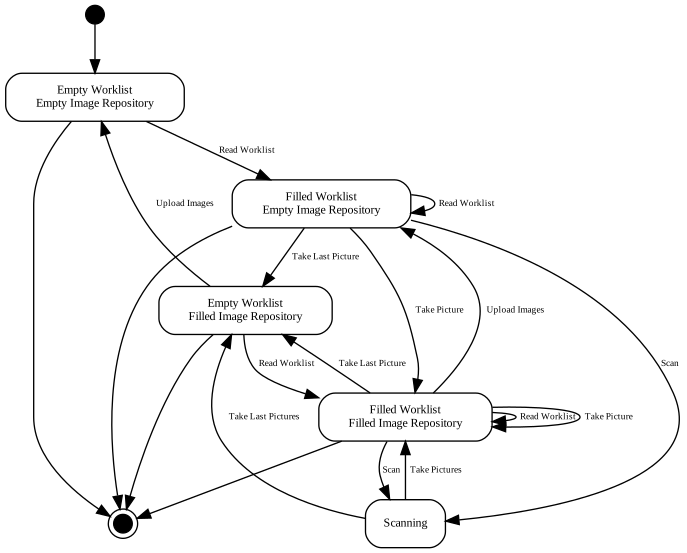
ARIS Bluetooth states[edit]

Mobile app states[edit]